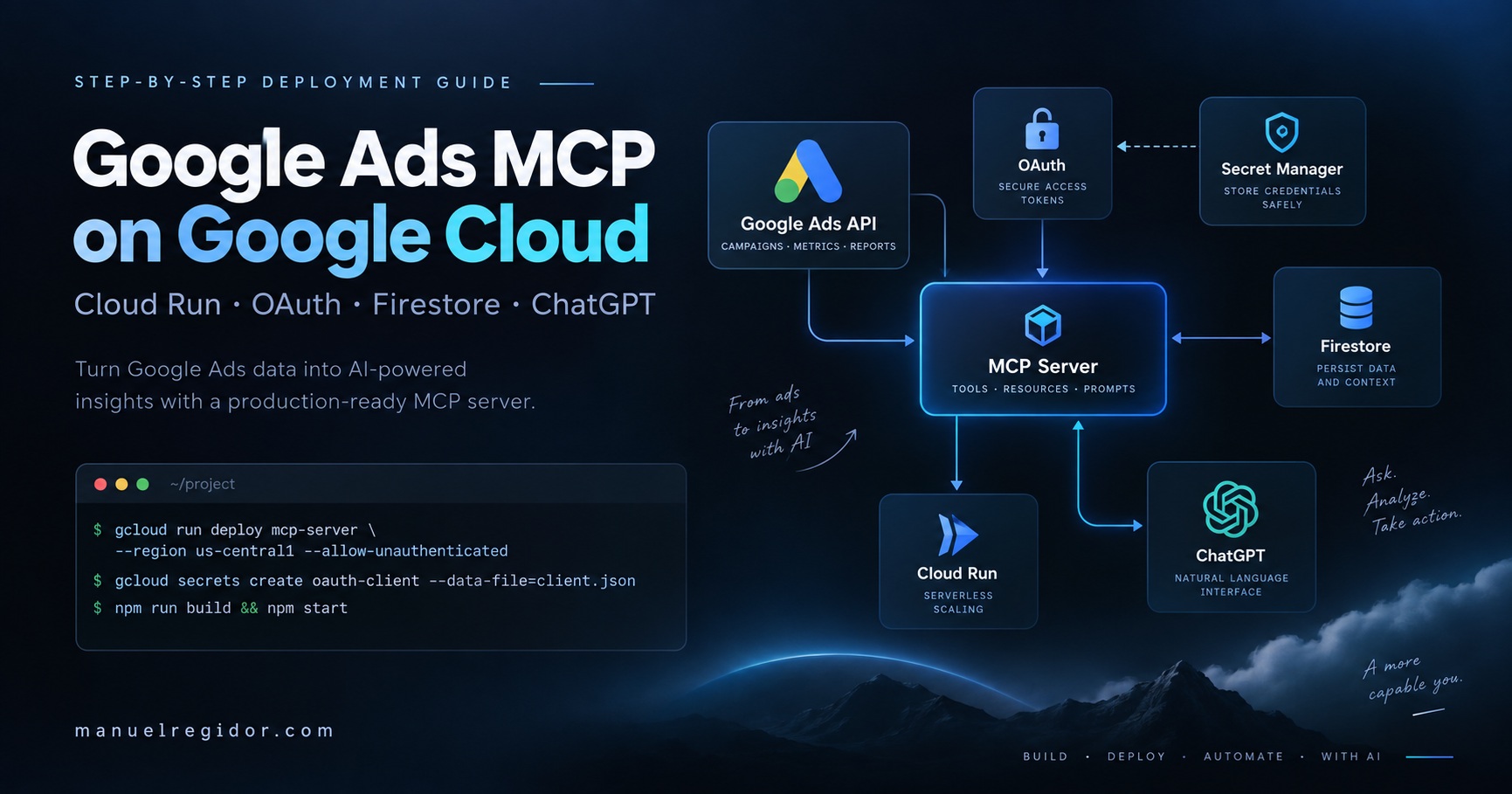
I wanted ChatGPT to be able to query the Google Ads accounts I already have access to without copying reports into a chat or putting one shared Google user behind the integration.
Google publishes an official Google Ads MCP server and an integration guide. The project already gives an MCP client read-only access to Google Ads data, and it supports remote HTTP operation through FastMCP’s Google OAuth proxy.
What I wanted was a deployment I could leave running: hosted on Google Cloud Run, with OAuth state surviving restarts, secrets outside the container, and each person authenticating with their own Google account.
This article documents the deployment I actually made in September 2026 and the corrections I applied later once more people started using it. I kept the exact source revisions, relevant commands and real errors because I mainly want this to remain useful six months from now, when I have inevitably forgotten why a particular IAM role or environment variable exists.
What we are building
The final request path looks roughly like this:
MCP client
   |
   | OAuth / Streamable HTTP
   v
Google Cloud Run
   |
   +-- Google Ads MCP
   |      |
   |      +-- FastMCP OAuth proxy
   |      +-- Google OAuth
   |
   +-- Firestore
   |      |
   |      +-- persistent OAuth state
   |
   v
Google Ads API
The important architectural decision is that Google authentication happens per user. The Cloud Run service is shared, but when somebody connects the MCP server from a compatible client, that person goes through Google OAuth with their own Google identity.
Google Ads permissions therefore continue to follow the permissions already granted to that Google user.
Why I did not just run it locally
The official project supports a much simpler local setup. For a single developer, that may be all you need: run the MCP server locally, configure credentials and point an MCP client at the process.
I wanted a different shape:
- one remote MCP URL instead of one local process per machine;
- OAuth authentication per person;
- a deployment usable from ChatGPT, which connects to remote MCP servers rather than directly to a local
stdioprocess; - OAuth state that survives Cloud Run revisions and multiple instances;
- secrets managed outside the Docker image;
- a pinned server revision so I can reproduce the deployment later.
The trade-off is obvious: this is more infrastructure.
Local, minimal Cloud Run, or persistent Cloud Run
Google’s current documentation includes both local approaches and a Cloud Run deployment using the OAuth proxy. My setup is therefore not a replacement for Google’s guide; it is a more explicit, persistent version of the remote deployment.
| Local / stdio | Minimal Cloud Run | This deployment | |
|---|---|---|---|
| Shared remote endpoint | No | Yes | Yes |
| Per-user Google OAuth | Not as a shared service | Yes | Yes |
| Firestore OAuth persistence | No | Optional | Yes |
| Persistent JWT signing key | No | Recommended | Yes |
| Token encryption key | No | Optional | Yes |
| Secret Manager | No | Not required by the minimal example | Yes |
| Dedicated runtime service account | No | Optional | Yes |
| Explicit IAM | Minimal | Depends on setup | Yes |
| Source revision pinned | Depends | Often latest in examples |
Yes |
| Protocol verification | Manual | Manual | Included below |
| Operational complexity | Low | Medium | Higher |
ChatGPT requirements
At the time of writing, ChatGPT Free does not support this custom-MCP developer-mode workflow.
OpenAI’s current documentation says Pro users can connect custom MCP servers with read/fetch permissions in developer mode, while full MCP support, including write/modify actions, is available in beta to Business, Enterprise and Edu. The official Google Ads MCP server is read-only today, so the read/fetch capability is the relevant part for this tutorial.
The exact ChatGPT UI can also differ by plan and by whether you are working inside a managed workspace. Business and Enterprise/Edu may introduce admin, publishing and access-control steps that a Pro user will not see.
OpenAI changes these capabilities fairly quickly, so check the current MCP and developer-mode documentation before starting.
Prerequisites
For this deployment I used:
- a Google Cloud project with billing enabled;
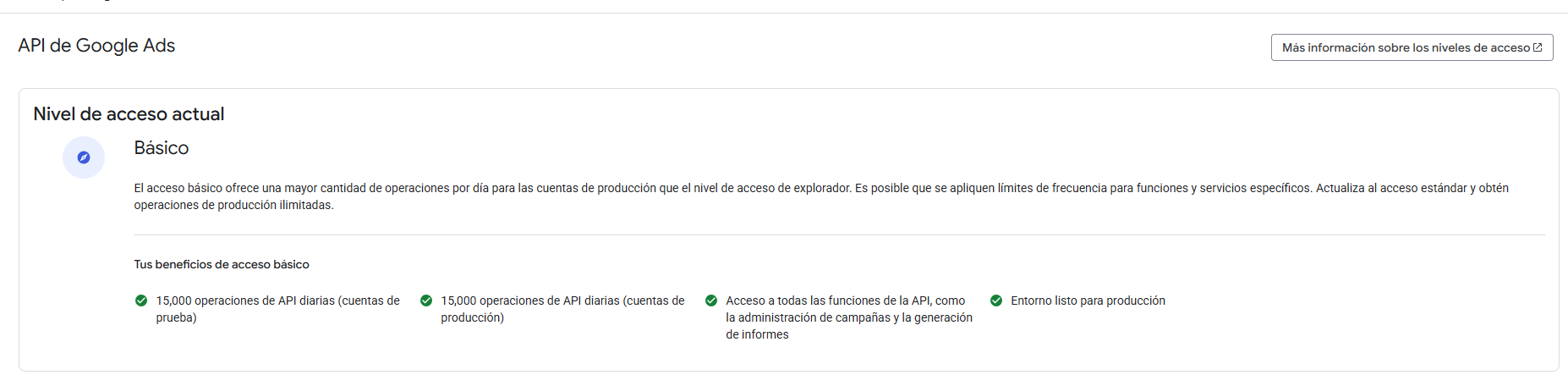
- Google Ads API access;
- a Google OAuth 2.0 Web client;
- a Google Ads manager account because my access spans multiple customer accounts;
- Google Cloud Shell;
- a ChatGPT plan/workspace that can connect the required custom MCP, or another compatible MCP client;
- the official
googleads/google-ads-mcprepository.
My Cloud Run and Firestore region is:
europe-southwest1There is no requirement to use Madrid. I chose it because it is the region I wanted for this project.
1. Select the correct Google Cloud project and open Cloud Shell
Before running any commands, make sure you are working in the correct Google Cloud project. Enabled APIs, OAuth credentials, billing and the resources created in this guide all belong to a specific project.
Identify the Project ID
Open Google Cloud Console and look at the top bar next to the Google Cloud logo. That is the project selector.
When you open it, you will see something similar to:
Project name             Project ID
-----------------------------------------------
Google Ads API           my-project-123456789
Another project          another-project
For the commands in this guide you need the Project ID, not the display name and not the numeric project number.
If you already have a project that you use for Google Ads API, as I did, reuse that project instead of creating a new one unnecessarily. The important point is that it is the project where you want the Google Ads access, OAuth credentials and MCP deployment to live.
Open Cloud Shell
I ran every deployment command in this guide from Google Cloud Shell. You do not need to install gcloud on Windows or use your own server.
In the top-right corner of Google Cloud Console, click the terminal icon that looks roughly like:
>_It is labelled Activate Cloud Shell. A terminal opens at the bottom of the browser. After a few seconds you should see something similar to:
your-user@cloudshell:~$Cloud Shell is a Google-provided machine for working with your project. Tools such as gcloud, git and docker are already available.
First check which project gcloud currently has selected:
gcloud config get-value projectThe value must match the Project ID you just identified in the console.
Then I stored that project in a variable and selected Madrid as the region:
export PROJECT_ID="$(gcloud config get-value project)"
export REGION="europe-southwest1"

gcloud config set run/region "$REGION"
Two useful checks before continuing:
gcloud auth list
gcloud billing projects describe "$PROJECT_ID"
The second command should confirm that billing is enabled for the project.
2. Check and enable the Google Cloud APIs
Before enabling everything from the terminal, it is worth checking visually that you are looking at the correct project and that the Google Ads API is available.
Check Google Ads API in the console
In Google Cloud Console:
- Use the search box at the top and search for Google Ads API.
- Open the Google Ads API result under APIs & Services.
- If you see Manage or an indication that the API is enabled, it is already active in that project.
- If you see Enable, click it.
The official Google Ads MCP repository itself includes enabling Google Ads API as a prerequisite.
I then enabled all services needed by this deployment from Cloud Shell:
gcloud services enable \
  googleads.googleapis.com \
  run.googleapis.com \
  cloudbuild.googleapis.com \
  artifactregistry.googleapis.com \
  secretmanager.googleapis.com \
  firestore.googleapis.com
Each service has a specific purpose:
googleads.googleapis.com: access to Google Ads API;run.googleapis.com: run the MCP service on Cloud Run;cloudbuild.googleapis.com: build the image;artifactregistry.googleapis.com: store the Docker image;secretmanager.googleapis.com: store secrets;firestore.googleapis.com: persist OAuth state.
If any of them were already enabled, the command simply leaves them enabled.
3. Create Firestore for OAuth state
FastMCP can use several storage backends for OAuth state. In-memory storage is convenient for local testing, but it is not a good fit for a Cloud Run service that may restart or scale to multiple instances.
I used Firestore for this deployment. Three options on the database creation screen are worth understanding before clicking through:
(default)is the default database ID. Google Ads MCP uses that database name by default unless you configure another one explicitly.- Native mode means using Firestore’s native document-database API. The other Standard option is Datastore mode, intended for applications using the Datastore API.
- Standard edition provides the normal Firestore feature set. Enterprise adds a more advanced query engine and additional capabilities that this OAuth-state storage does not use.
Create the database in the console
In Google Cloud Console:
- Search for Firestore or open the Databases section.
- Click Create database.
- Use
(default)as the database ID. - Select Standard edition.
- Select Firestore in Native mode.
- Choose the same region as Cloud Run; in my case,
europe-southwest1(Madrid). - Create the database.
I also kept the equivalent command in the article because it creates exactly that configuration:
gcloud firestore databases create \
  --database="(default)" \
  --location="$REGION" \
  --edition=standard \
  --type=firestore-native
Then verify it:
gcloud firestore databases list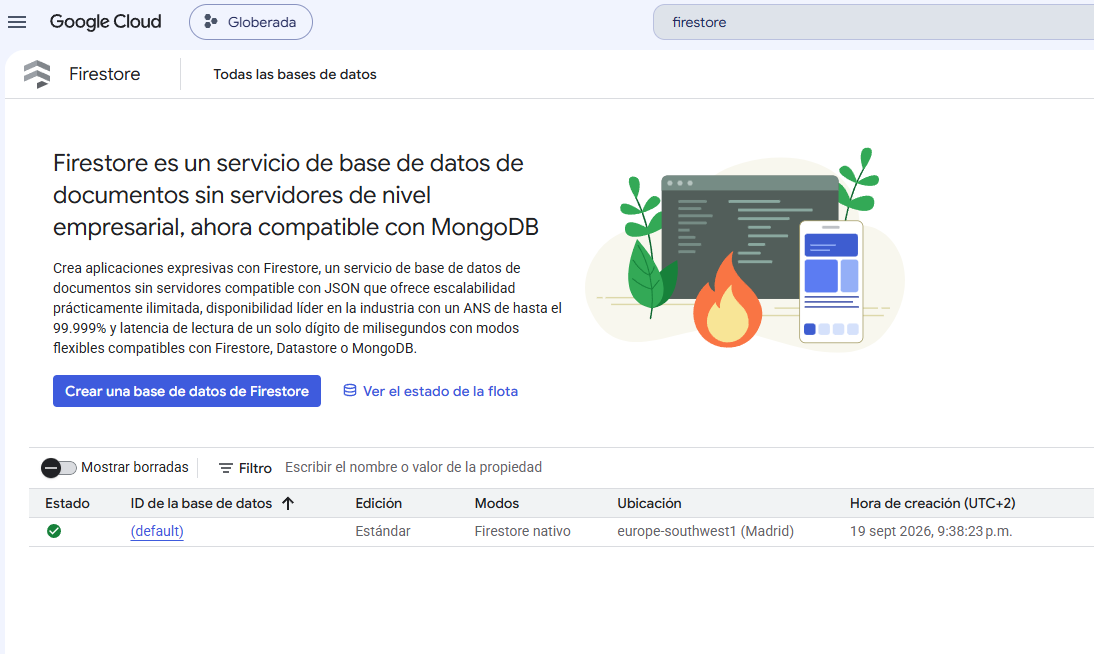
4. Create the Google OAuth Web client
The remote server needs a Google OAuth Web application client.
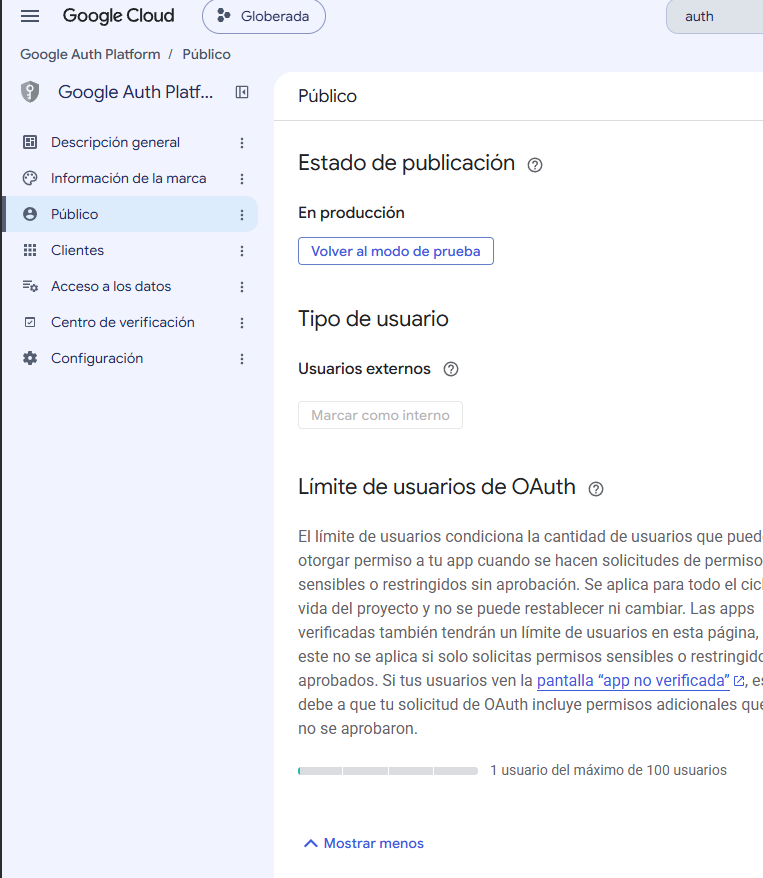
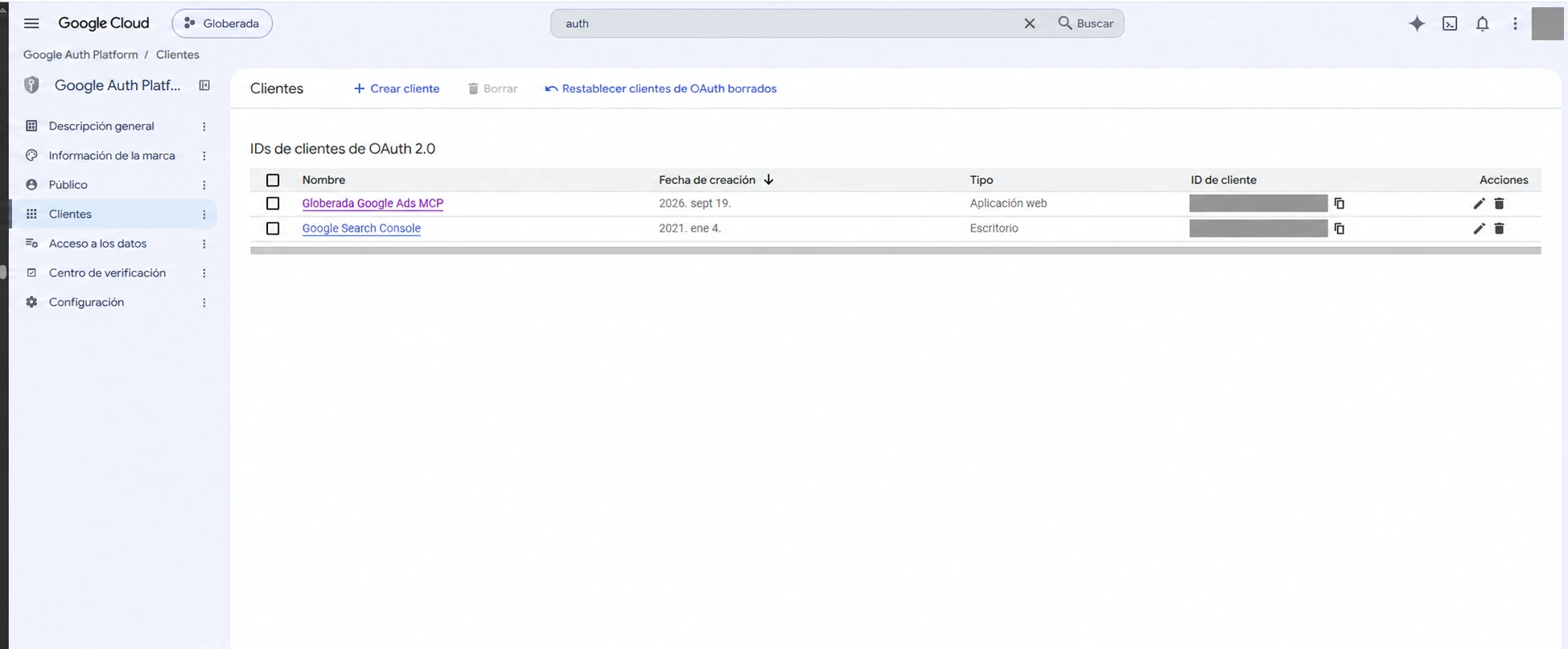
In Google Auth Platform I created a Web client for the MCP service and copied its Client ID.
At this stage the final callback URL does not exist yet because Cloud Run has not assigned the service URL. We will return to the OAuth client after the first deployment and add:
https://YOUR_CLOUD_RUN_HOST/auth/callbackFastMCP uses this fixed callback to complete the upstream Google OAuth flow. The MCP client’s own callback is a separate part of the OAuth proxy flow and is handled through dynamic client registration.
5. Define the deployment variables
Back in Cloud Shell:
export SERVICE_NAME="google-ads-mcp"
export OAUTH_CLIENT_ID="YOUR_GOOGLE_OAUTH_CLIENT_ID"
For a shared multi-user deployment, I would not define a global login customer ID here. Different people may reach the same Google Ads account through different paths: direct access, one MCC, or another manager account.
Since Google Ads MCP 0.0.4, tools that need it accept an optional login_customer_id parameter per call. If the user has direct access to the client account, omit it. If a query must go through a manager account, pass that manager’s customer ID only for that call.
For the first Cloud Run revision I deliberately do not invent a service hostname. Cloud Run will give us the canonical URL after the service is created, and then we will set GOOGLE_ADS_MCP_BASE_URL to that exact value.
6. Store the runtime secrets in Secret Manager
I did not want OAuth or signing secrets in the Docker image or written directly into the deploy command.
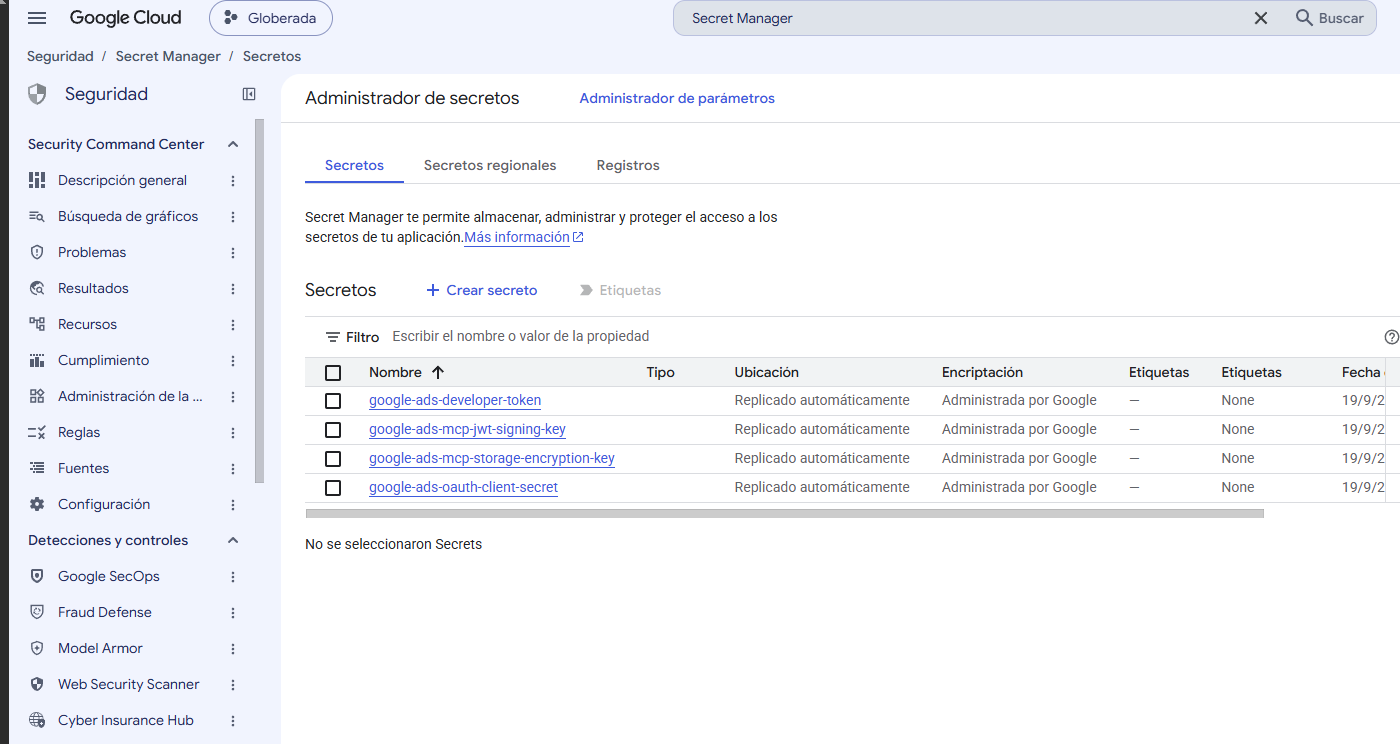
Create the three secrets used by the final deployment:
gcloud secrets create google-ads-oauth-client-secret \
  --replication-policy="automatic"

gcloud secrets create google-ads-mcp-jwt-signing-key \
  --replication-policy="automatic"

gcloud secrets create google-ads-mcp-storage-encryption-key \
  --replication-policy="automatic"
Add the Google OAuth client secret without echoing it back to the terminal:
read -s -p "OAuth Client Secret: " OAUTH_SECRET

printf '%s' "$OAUTH_SECRET" | \
  gcloud secrets versions add google-ads-oauth-client-secret --data-file=-

unset OAUTH_SECRET
Generate a persistent FastMCP JWT signing key and a key for encrypted OAuth storage:
openssl rand -base64 48 | \
  gcloud secrets versions add google-ads-mcp-jwt-signing-key --data-file=-

openssl rand -base64 32 | \
gcloud secrets versions add google-ads-mcp-storage-encryption-key --data-file=-A 2026 change: developer tokens are no longer part of a new setup
Google sunset Google Ads developer tokens on September 9, 2026. Existing clients can still send the old header for compatibility, but Google says it is optional and ignored by the API servers.
API access levels are now associated with the Google Cloud project that owns the OAuth credentials.
The pinned MCP revision in this article still contains compatibility references to GOOGLE_ADS_DEVELOPER_TOKEN. For a new deployment today, I would not create or publish a developer token.
See Google’s developer token sunset documentation for the current model.
7. Create a dedicated Cloud Run service account
Rather than run the container as a broad default identity, I created a dedicated runtime account:
gcloud iam service-accounts create google-ads-mcp-runner \
  --display-name="Google Ads MCP Cloud Run"

export RUN_SA="google-ads-mcp-runner@${PROJECT_ID}.iam.gserviceaccount.com"
The service needs to read and write the Firestore-backed OAuth state:
gcloud projects add-iam-policy-binding "$PROJECT_ID" \
  --member="serviceAccount:${RUN_SA}" \
  --role="roles/datastore.user"
8. Grant the runtime service account access to every secret
This step needs to happen before the first Cloud Run deployment.
gcloud secrets add-iam-policy-binding google-ads-oauth-client-secret \
  --member="serviceAccount:${RUN_SA}" \
  --role="roles/secretmanager.secretAccessor"

gcloud secrets add-iam-policy-binding google-ads-mcp-jwt-signing-key \
  --member="serviceAccount:${RUN_SA}" \
  --role="roles/secretmanager.secretAccessor"

gcloud secrets add-iam-policy-binding google-ads-mcp-storage-encryption-key \
  --member="serviceAccount:${RUN_SA}" \
--role="roles/secretmanager.secretAccessor"The first time I performed the deployment I had omitted this permission for the storage-encryption secret. That was just a missing setup step, so I have placed it correctly here rather than making the failed deploy part of the tutorial.
If you created the optional developer-token secret, grant the same role to that secret as well.
9. Create Artifact Registry
The Docker image needs somewhere to live:
gcloud artifacts repositories create mcp-servers \
  --repository-format=docker \
  --location="$REGION" \
  --description="Docker images for MCP servers"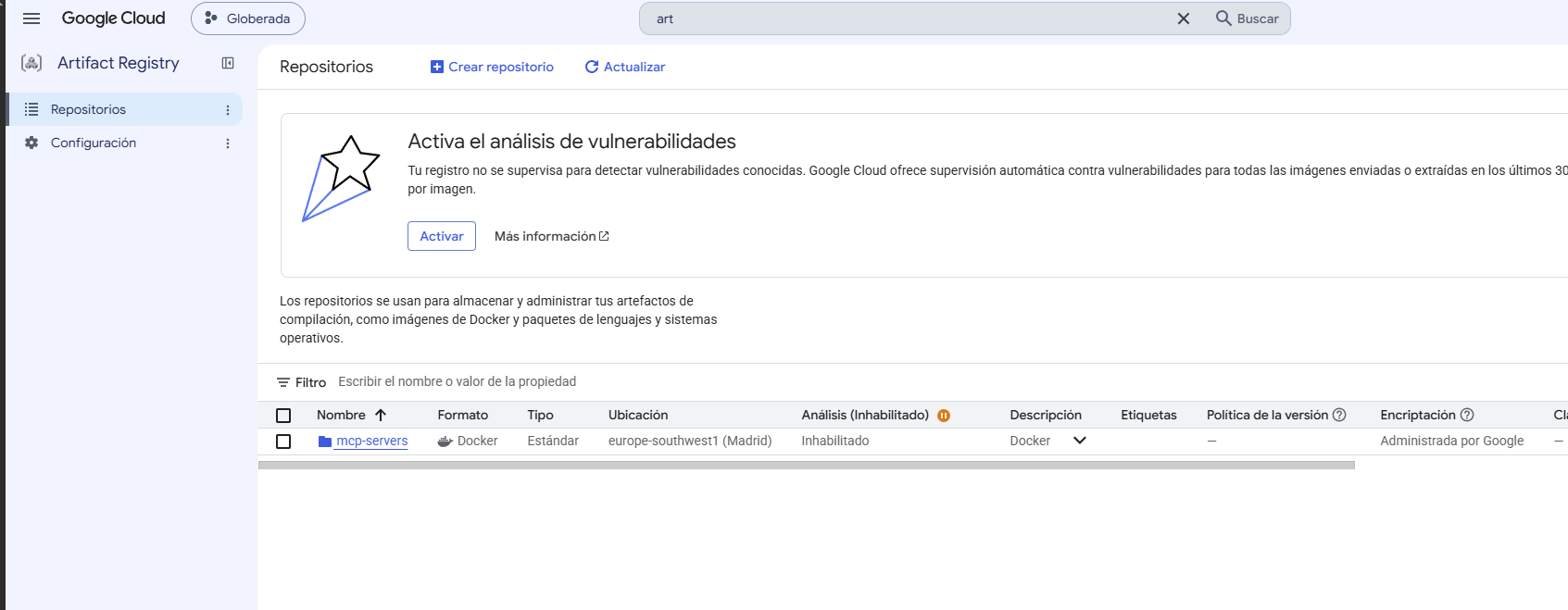
10. Clone the official server and pin the revision
I deliberately did not build whatever happened to be on main that day.
My initial September deployment used revision 7a40eae... (Google Ads MCP 0.0.3). On October 7 I upgraded after confirming that 0.0.4 added an optional per-call login_customer_id, which is important for correct multi-user behavior.
The exact revision I currently run is:
8efbd2e2b56da755cd0b3e642149ed8ad96b44b5In addition to the 0.0.4 functionality, that revision updates FastMCP for an upstream fix related to OAuth access tokens being logged.
Clone the repository and check out that exact commit:
cd ~

git clone https://github.com/googleads/google-ads-mcp.git
cd google-ads-mcp

git checkout 8efbd2e2b56da755cd0b3e642149ed8ad96b44b5
git rev-parse HEAD
Pinning the source revision makes the rest of this article reproducible. The upstream project will keep changing; this guide describes the revision I actually run.
11. Adapt the Dockerfile for Firestore and remove an incompatible workaround
The Firestore backend needs the google-ads-mcp[firestore] extra installed. In the deployed revision, the Dockerfile still installs only the base package:
uv pip install --system .I changed it to:
sed -i 's|uv pip install --system \.|uv pip install --system .[firestore]|' DockerfileWhen upgrading to 8efbd2e..., I hit another reproducible Cloud Build failure. The Dockerfile contained a Codex-specific workaround that asserted FastMCP was exactly 4.0.3:
assert version('fastmcp') == '4.0.3'but that source revision already allowed FastMCP 4.0.6 or newer. My build resolved FastMCP 4.0.11 and failed with AssertionError.
Because that patch was a compatibility workaround for an older Codex version and is not part of my ChatGPT workflow, I removed the block before building:
sed -i '/^# Codex CLI 0\.146/,/^LABEL io\.google-mcp\.workaround=/d' DockerfileI verified both changes:
grep -n "4.0.3\|workaround" Dockerfile
grep -n "uv pip install" Dockerfile
The first command should return nothing and the second should show:
RUN uv pip install --system .[firestore]12. Build the image with Cloud Build
I tagged the image with the short source commit instead of latest:
export IMAGE="${REGION}-docker.pkg.dev/${PROJECT_ID}/mcp-servers/google-ads-mcp:8efbd2e"Build and push it:
gcloud builds submit \
  --tag "$IMAGE" \
  .
Then verify that Artifact Registry contains the image:
gcloud artifacts docker images list \
  "${REGION}-docker.pkg.dev/${PROJECT_ID}/mcp-servers"
My October update installed google-ads-mcp==0.0.4, FastMCP 4.0.11 and the Firestore dependencies. The image built and pushed successfully after removing the obsolete workaround.
13. Deploy the first Cloud Run revision
For the first revision I deliberately do not set GOOGLE_ADS_MCP_BASE_URL yet. Cloud Run has not assigned the service URL, so inventing the hostname is unnecessary.
The OAuth metadata will be provisional on this first revision; we fix it immediately after reading Cloud Run’s actual URL.
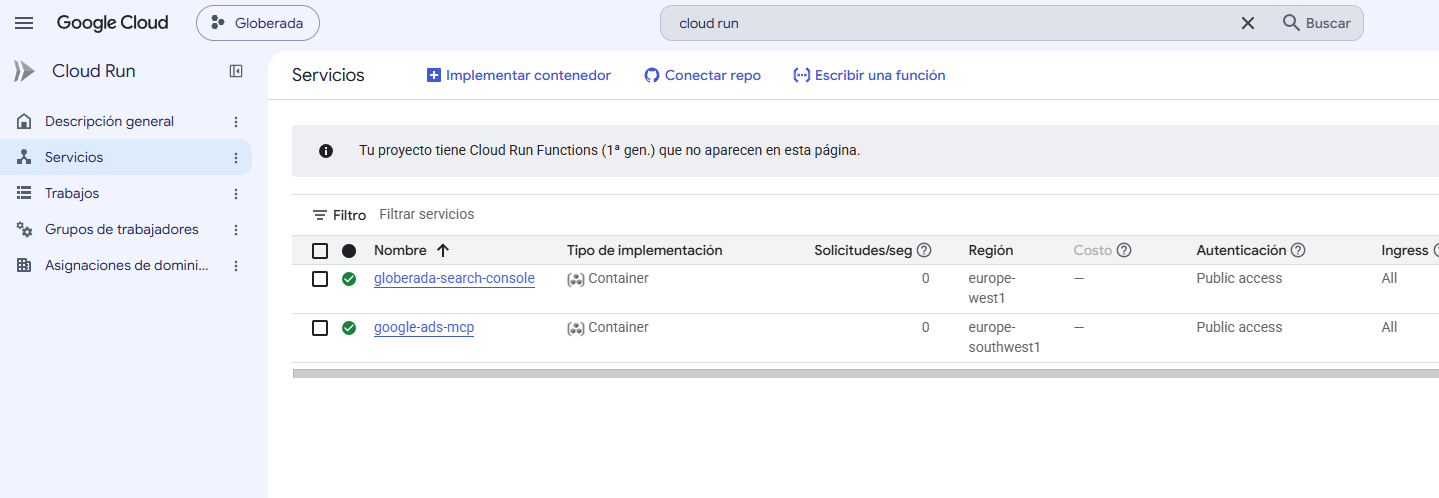
gcloud run deploy "$SERVICE_NAME" \
  --image="$IMAGE" \
  --region="$REGION" \
  --platform=managed \
  --service-account="$RUN_SA" \
  --allow-unauthenticated \
  --set-env-vars="GOOGLE_PROJECT_ID=${PROJECT_ID},GOOGLE_ADS_MCP_OAUTH_CLIENT_ID=${OAUTH_CLIENT_ID},GOOGLE_ADS_MCP_STORAGE_TYPE=firestore,FASTMCP_HOST=0.0.0.0" \
  --set-secrets="GOOGLE_ADS_MCP_OAUTH_CLIENT_SECRET=google-ads-oauth-client-secret:latest,GOOGLE_ADS_MCP_JWT_SIGNING_KEY=google-ads-mcp-jwt-signing-key:latest,GOOGLE_ADS_MCP_STORAGE_ENCRYPTION_KEY=google-ads-mcp-storage-encryption-key:latest"
Why is Cloud Run public?
--allow-unauthenticated can look wrong at first glance.
Here it is intentional: Cloud Run has to accept the HTTP requests that begin the MCP/OAuth negotiation. Authentication is enforced by FastMCP at the application layer.
We will verify this explicitly below: an anonymous request reaches the service, but /mcp responds with 401 Unauthorized and tells the client where the OAuth metadata lives.
14. Set Cloud Run’s actual URL as the MCP base URL
Once the service exists, ask Cloud Run for its canonical status URL:
export ACTUAL_URL="$(gcloud run services describe "$SERVICE_NAME" \
  --region="$REGION" \
  --format='value(status.url)')"

echo "$ACTUAL_URL"
Update the MCP server so its OAuth metadata and redirects use that exact host:
gcloud run services update "$SERVICE_NAME" \
  --region="$REGION" \
  --update-env-vars="GOOGLE_ADS_MCP_BASE_URL=${ACTUAL_URL}"
For a shared multi-user MCP, do not set GOOGLE_ADS_LOGIN_CUSTOMER_ID globally unless every user reaches client accounts through that same manager.
A global value applies to every request and can break users who have direct access to a client account but no permission on that MCC. With 0.0.4 I prefer leaving the global value unset and supplying the optional login_customer_id only when a specific query actually needs manager context.
Then check the latest revision:
gcloud run services describe "$SERVICE_NAME" \
  --region="$REGION" \
  --format="table(status.url,status.latestReadyRevisionName,status.conditions[0].status)"
I wanted the status to be True before touching the ChatGPT side.
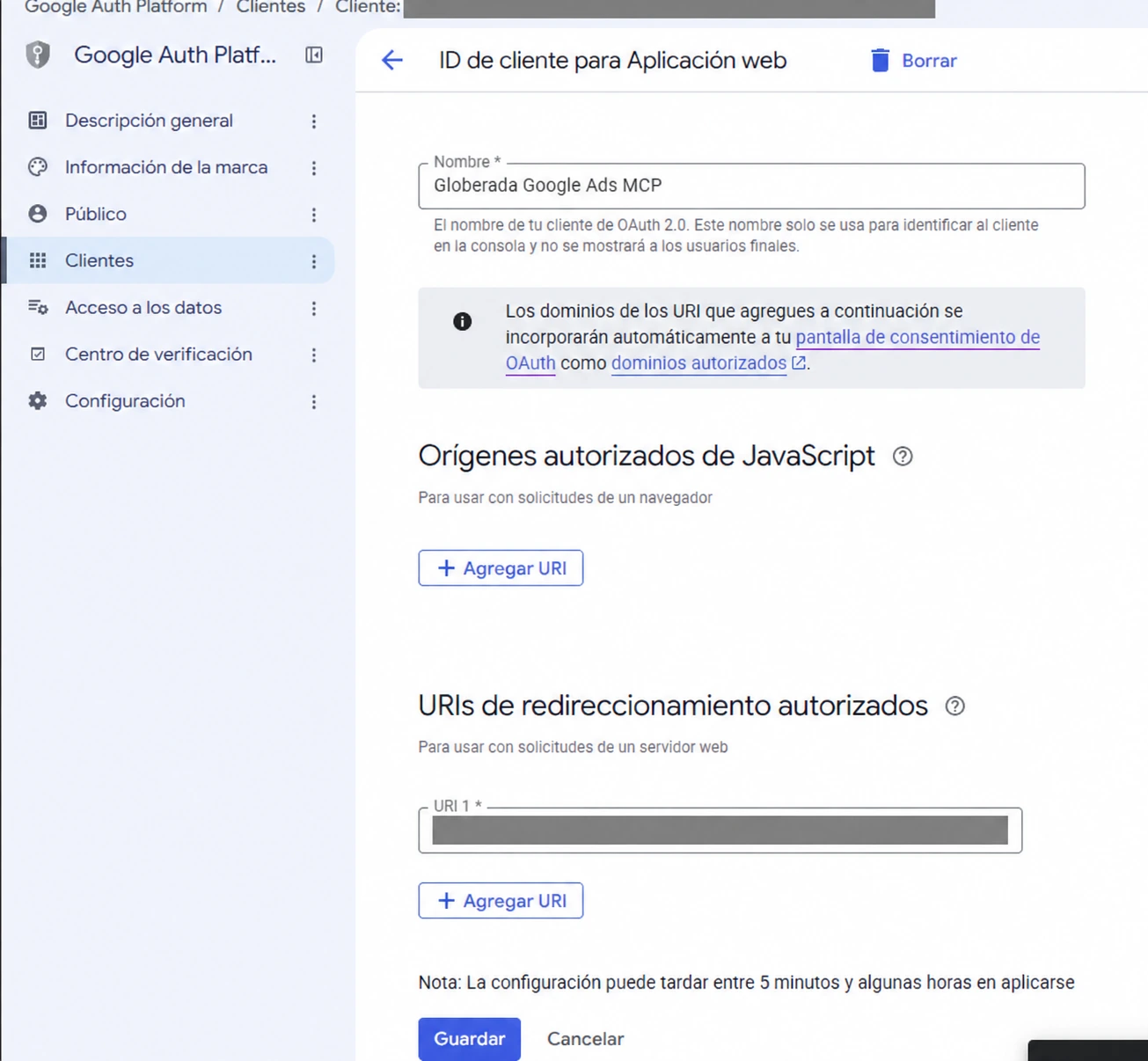
15. Add the final Google OAuth redirect URI
Now return to the OAuth Web client in Google Auth Platform.
Add the exact Cloud Run URL plus FastMCP’s callback path:
https://YOUR_CLOUD_RUN_HOST/auth/callbackSave the client.
16. Verify that the server started correctly
Cloud Run logs are the first useful check:
gcloud run services logs read "$SERVICE_NAME" \
  --region="$REGION" \
  --limit=50
If you want to tail logs live and your installed gcloud does not accept gcloud run services logs tail, the command I used was:
gcloud beta run services logs tail "$SERVICE_NAME" \
  --region="$REGION"
The deployment I made showed FastMCP starting with the Streamable HTTP transport on:
http://0.0.0.0:8080/mcpThat confirms the container is running, but it does not yet prove the OAuth discovery flow is correct.
17. Check the MCP protected-resource metadata
Query the MCP protected-resource discovery endpoint:
curl -sS \
  "$ACTUAL_URL/.well-known/oauth-protected-resource/mcp" \
  | python3 -m json.tool
The important parts are:
{
  "resource": "https://YOUR_CLOUD_RUN_HOST/mcp",
  "authorization_servers": [
    "https://YOUR_CLOUD_RUN_HOST/"
  ],
  "scopes_supported": [
    "openid",
    "https://www.googleapis.com/auth/userinfo.email",
    "https://www.googleapis.com/auth/userinfo.profile",
    "https://www.googleapis.com/auth/adwords"
  ],
  "bearer_methods_supported": [
    "header"
  ]
}
This was one of the most useful checks during setup: if the advertised resource or authorization server points to the wrong hostname, fix the base URL before debugging the MCP client.
18. Check the OAuth authorization-server metadata
Next:
curl -sS \
  "$ACTUAL_URL/.well-known/oauth-authorization-server" \
  | python3 -m json.tool
My deployment exposed the expected OAuth endpoints:
{
  "issuer": "https://YOUR_CLOUD_RUN_HOST/",
  "authorization_endpoint": "https://YOUR_CLOUD_RUN_HOST/authorize",
  "token_endpoint": "https://YOUR_CLOUD_RUN_HOST/token",
  "registration_endpoint": "https://YOUR_CLOUD_RUN_HOST/register",
  "grant_types_supported": [
    "authorization_code",
    "refresh_token"
  ],
  "code_challenge_methods_supported": [
    "S256"
  ]
}
At this point Cloud Run, FastMCP and the OAuth discovery layer were all behaving as expected.
19. A 401 from /mcp is good news
The next check looks like a failure but is exactly what I wanted:
curl -i "$ACTUAL_URL/mcp"Expected:
HTTP/2 401
WWW-Authenticate: Bearer ...
The WWW-Authenticate header should point back to:
/.well-known/oauth-protected-resource/mcpThat tells an MCP client: the server exists, this resource is protected, and here is the metadata needed to start authentication.
I also tested an MCP initialize request manually:
curl -i -X POST "$ACTUAL_URL/mcp" \
  -H "Content-Type: application/json" \
  -H "Accept: application/json, text/event-stream" \
  --data '{
    "jsonrpc":"2.0",
    "id":1,
    "method":"initialize",
    "params":{
      "protocolVersion":"2026-07-28",
      "capabilities":{},
      "clientInfo":{
        "name":"manual-test",
        "version":"1.0"
      }
    }
  }'
Without a bearer token, that correctly returned 401 as well.
20. Connect the MCP server to ChatGPT
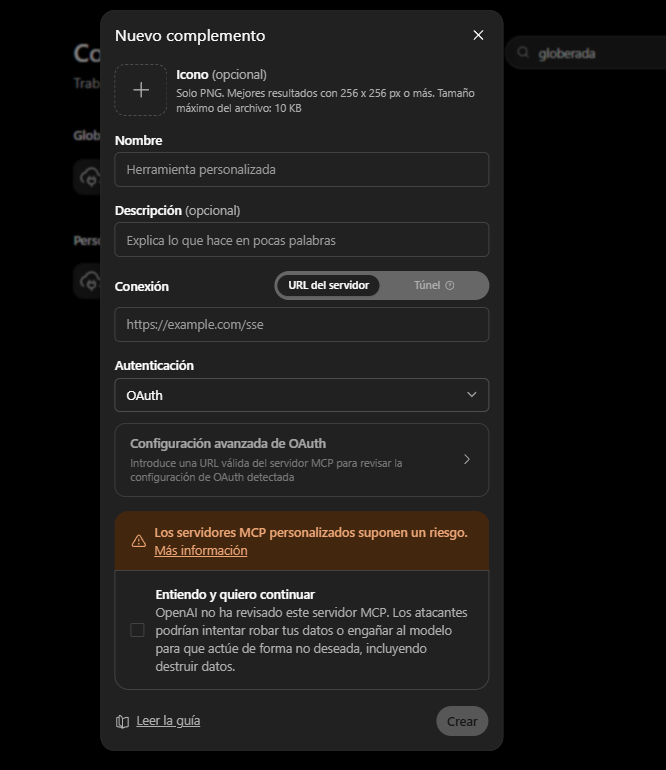
The remote MCP URL is simply:
https://YOUR_CLOUD_RUN_HOST/mcpIn ChatGPT, enable developer mode/custom MCP support for the relevant account or workspace and create the custom app using that URL.
The exact UI can change, so I do not want the article to depend too heavily on button labels. The key distinction that cost me time is this:
creating or publishing the app is not the same as connecting your own user to it.
21. “0 actions enabled”: my user was not connected yet
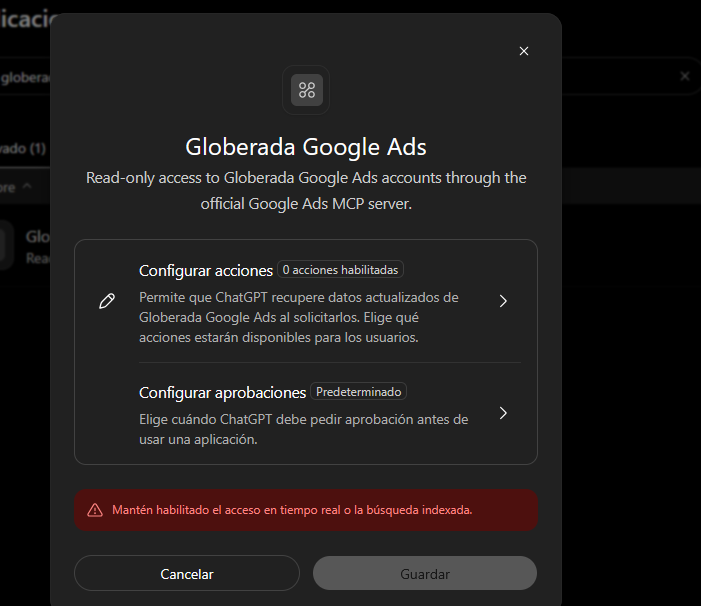
In my case, this message did not indicate a Cloud Run or MCP server problem.
I had created the app inside the ChatGPT Business workspace, but my own user had not connected to it yet. ChatGPT therefore showed:
0 actions enabledand would not let me refresh the actions.
The fix was simply to open the app from my ChatGPT user, choose Connect, and complete the Google OAuth flow. As soon as I completed that per-user connection, the MCP tools became available.
22. Why the OAuth proxy is useful with multiple users
This is the main reason I chose this architecture.
The Cloud Run service has one Google OAuth application configuration, but it does not force everyone through one Google Ads user.
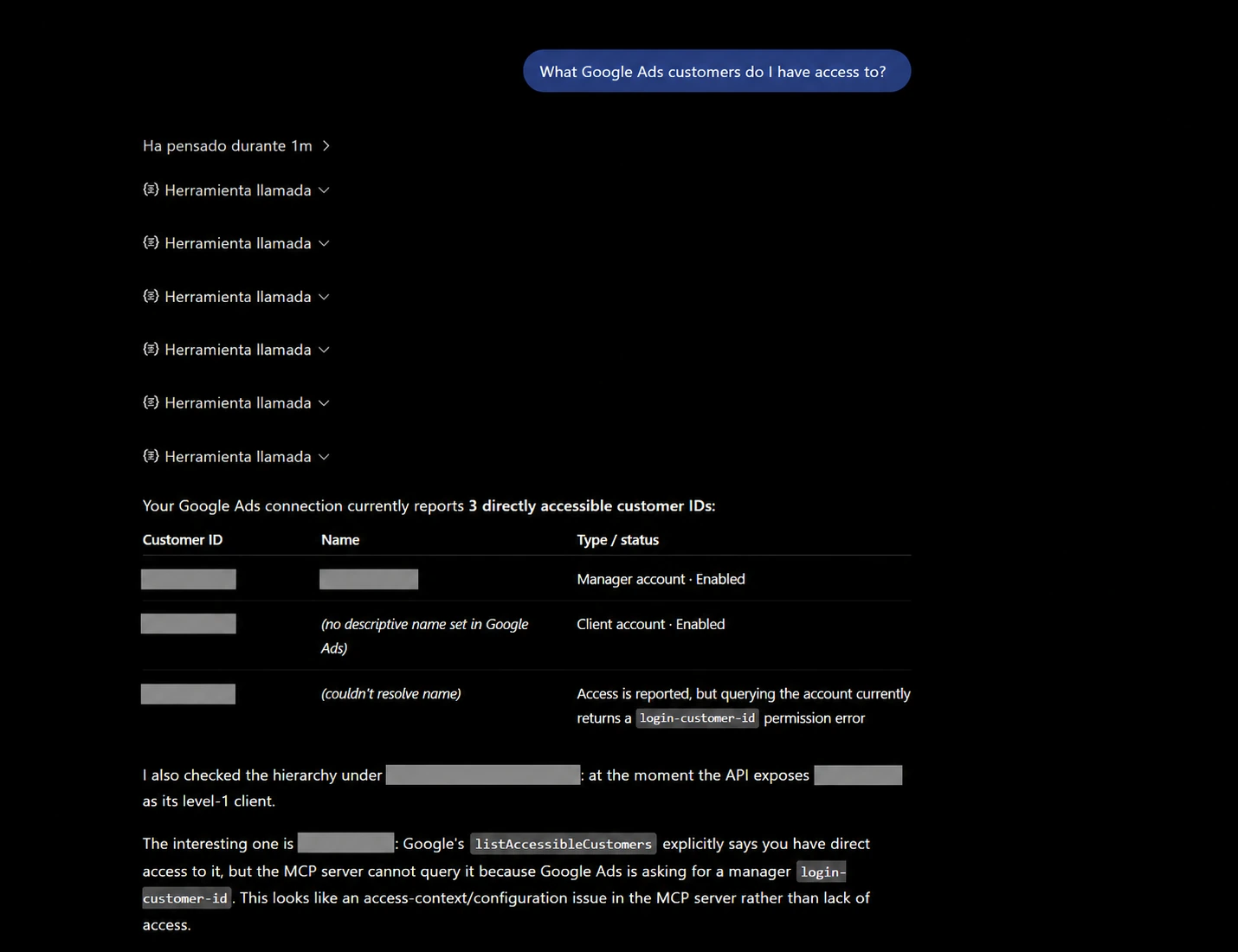
Each user completes Google OAuth individually. The access token used for Google Ads therefore represents that user, and list_accessible_customers returns the customer IDs directly accessible to the user authenticating the call.
That gives a much cleaner model for a team:
Manuel -> Google OAuth -> Manuel's Google Ads access
User B -> Google OAuth -> User B's Google Ads access
User C -> Google OAuth -> User C's Google Ads access
There is one remote MCP service to operate, but Google remains the source of truth for account access.
The login-customer-id nuance with multiple users
The OAuth token identifies the user, but Google Ads also needs to know which manager path is being used when access to a client account is not direct.
The rule that worked correctly for me is:
Direct access to the client account
-> omit login_customer_id

Access through an MCC
-> login_customer_id = the MCC customer ID used for that call
Do not confuse this with the user’s access level. A user with Read only permission can query data perfectly well. The failure happens when the login-customer-id header points to a manager account that the user cannot access.
23. Verify end-to-end Google Ads access
The final test is not simply “does ChatGPT show the app?”
It is whether a request can make the full round trip:
ChatGPT
-> remote MCP endpoint
-> OAuth proxy
-> user's Google authorization
-> Google Ads MCP
-> Google Ads API
-> accessible customer accounts
A natural first query is to ask which Google Ads customers are available to the authenticated user.
That exercises list_accessible_customers and confirms that the user-specific Google authorization is actually being used.
From there, the MCP server can execute read-only Google Ads queries for campaign and performance analysis.
24. Using it from clients other than ChatGPT
Nothing in the Cloud Run deployment is intrinsically ChatGPT-specific.
The official Google Ads MCP project documents configurations for other MCP clients, and the remote server exposes standard MCP/OAuth discovery endpoints.
The practical requirement is that the client supports the transport and OAuth flow used by the remote server. Client implementations can differ, so I would test each one instead of assuming identical behavior from a common mcpServers configuration shape.
Troubleshooting
Cloud Run says it cannot access a secret
Check the runtime service account, not your own Cloud Shell user:
gcloud secrets get-iam-policy YOUR_SECRET_NAMEEvery secret referenced by the service must be readable by the Cloud Run service account.
Firestore imports fail during the image build
Confirm the Dockerfile installs:
.[firestore]rather than only the base package.
OAuth metadata advertises the wrong hostname
Read the actual Cloud Run URL:
gcloud run services describe "$SERVICE_NAME" \
  --region="$REGION" \
  --format='value(status.url)'
and update GOOGLE_ADS_MCP_BASE_URL.
/mcp returns 401
Before authentication, that is expected. Inspect the WWW-Authenticate header and the protected-resource metadata rather than treating the status code alone as a failure.
ChatGPT shows zero actions
Verify that the app is connected for the current ChatGPT user and that the Google OAuth flow has been completed.
It works for me, but another user gets a manager-account permission error
This was the second real issue I found after onboarding another team member.
The MCP worked with my account, but another user with direct, read-only access to a client account received:
User doesn't have permission to access customer.
If you're accessing a client customer, the manager's customer id
must be set in the login-customer-id header.
The problem was not the user’s read-only permission. My Cloud Run service had a global GOOGLE_ADS_LOGIN_CUSTOMER_ID, so every request was being sent as if every user were entering through the same MCC.
The fix was:
- upgrade Google Ads MCP to a revision with optional per-call
login_customer_idsupport; - remove
GOOGLE_ADS_LOGIN_CUSTOMER_IDfrom the global Cloud Run environment; - omit
login_customer_idwhen the user has direct access; - send it only when the target account must be queried through a manager.
gcloud run services update google-ads-mcp \
  --region=europe-southwest1 \
  --remove-env-vars=GOOGLE_ADS_LOGIN_CUSTOMER_ID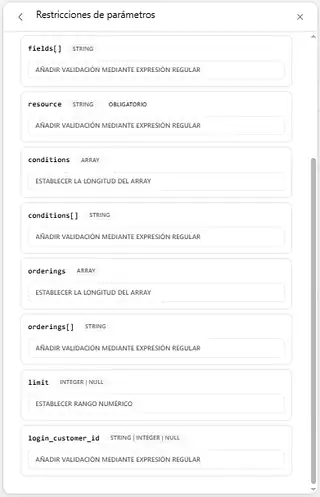
I updated the MCP, but ChatGPT still shows the old tool schema
Published ChatGPT tools are not refreshed continuously. After changing the server, open the app administration screen, enter Tools, and click Refresh.
After refreshing, my app showed all three tools and search_search exposed login_customer_id as STRING | INTEGER | NULL.

Security and maintenance notes
A few things I would keep exactly the same if I rebuilt this:
- use a dedicated Cloud Run service account;
- keep secrets in Secret Manager;
- never bake OAuth secrets into the image;
- use a persistent signing key across Cloud Run revisions;
- encrypt persisted OAuth state;
- pin the Google Ads MCP source version used for the image;
- avoid a global
GOOGLE_ADS_LOGIN_CUSTOMER_IDin multi-user deployments unless it is genuinely shared by every user; - refresh ChatGPT tools when the MCP server schema changes;
- keep the raw terminal history private;
- redact client IDs, customer IDs and credentials from screenshots when they do not add instructional value.
One thing I would add for a long-lived deployment is a periodic cleanup strategy for expired Firestore OAuth-state records.
Final result
The finished service gives me one remote Google Ads MCP endpoint that I can connect to ChatGPT while preserving per-user Google permissions.
The deployment is more involved than running the MCP server locally, but each extra component has a reason:
- Cloud Run gives me the remote endpoint;
- FastMCP OAuth proxy bridges MCP clients to Google OAuth;
- Google OAuth authenticates every user separately;
- Firestore keeps OAuth state durable;
- Secret Manager keeps credentials out of the image and repository;
- a dedicated service account and IAM limit what the runtime can access;
- a pinned source revision makes the deployment reproducible.
Most importantly, I now have the commands and the reasoning documented in one place instead of relying on my Cloud Shell history next time I need to rebuild it.
Comments